How to import your data into BeerDiary
This is a small tutorial explaining how you can import your existing data into the BeerDiary app. You can download the app here.
Preparation
First of all, start off by downloading the sample zip file here.
Extract the zip file, this will result in a file beers.json and a photos directory.
JSON structure
We will focus on the JSON file first. The sample file looks like this:
1
2
3
4
5
6
7
8
9
10
11
12
13
14
15
16
17
18
19
20
21
22
23
24
25
26
27
28
29
30
[
  {
    "name": "Test Beer 1",
    "brewery": "Some brewery",
    "country": "nl",
    "style": "Pilsner",
    "percentage": 5.0,
    "comment": "Comment",
    "rating": 5,
    "photos": [
      "testbeer1.jpg"
    ],
    "dateAdded": "2021-09-02T22:00:00Z",
    "dateModified": "2023-12-31T14:13:45Z"
  },
  {
    "name": "Test Beer 2",
    "brewery": "Another brewery",
    "country": "de",
    "style": "IPA",
    "percentage": 8.0,
    "comment": "Another comment",
    "rating": 4,
    "photos": [
      "testbeer2.jpg"
    ],
    "dateAdded": "2021-11-23T23:00:00Z",
    "dateModified": "2023-12-31T14:13:45Z",
  }
]
⚠️ NOTE: To edit this file, use a generic text editor or use an online editor like this if you want something more user friendly.
The file is an array of objects, each object describes a beer. Some fields were introduced in later app versions, the App version column indicates which version (and later) of the app supports this field.
Per object, you can specify these fields:
| Key | Description | Mandatory | App version | Default (if no value given) | JSON type |
|---|---|---|---|---|---|
| name | Beer name | Yes | 1.0 | Empty string | string |
| brewery | Brewery | No | 1.0 | Empty string | string |
| country | Two letter country code in ISO alpha-2 format. See remarks below. | No | 2.3 | Empty string | string |
| style | Beer style | No | 1.5 | Empty string | string |
| percentage | Alcohol percentage from 0.0 to 100.0 See remarks below. | No | 2.3 | Nothing | number |
| rating | Rating from 1-5 | No | 1.0 | 3 | integer |
| comment | User comments | No | 1.0 | Empty string | string |
| photos | Array of file names present in the photos directory.See remarks below. | No | 1.0 | Nothing | array of string |
| dateAdded | Date this object was added, in ISO8601 format. See remarks below. | No | 1.0 | First photo timestamp (if present) or else current time | date-time |
| dateModified | Date this object was modified, in ISO8601 format. See remarks below. | No | 1.0 | Current time | date-time |
So actually only the name field is mandatory, the rest is optional.
Dates
If you are generating this file by hand, I can recommend you to skip the dateAdded and dateModified fields since they will be filled in automatically.
- The
dateAddedfield will be based on the file timestamp of the first photo, or if that is not supplied the current time will be used. - The
dateModifiedfield will use the current time. - More information on ISO8601 can be found here.
Adding photos
As indicated in the previous section, put any photos you have in the photos directory. After this, you can reference the file name from the photos key.
⚠️ NOTE: Do not add the photos/ part in the file name, just use the plain file name. So photos/test1.jpg will not work but test1.jpg will.
⚠️ NOTE: File names are case senstive!
Supported file formats:
- JPEG
- HEIC
- GIF
- PNG
- TIF
Country
As of version 2.3 of the app, the origin country (country) field is supported. The value should be in ISO alpha-2 format (2 letter country code). For a complete list click here. Text is case-insensitive.
Percentage
As of version 2.3 of the app, the alcohol percentage (percentage) field is supported. The value can be anything between 0.0 and 100.0. Currently only one digit after the decimal point is supported. Any additional digits behind the decimal point will be rounded up/down.
Recreating the zip file
Once you are done editing the JSON file and adding photos, it is time to create a zip file that is suitable for importing into BeerDiary.
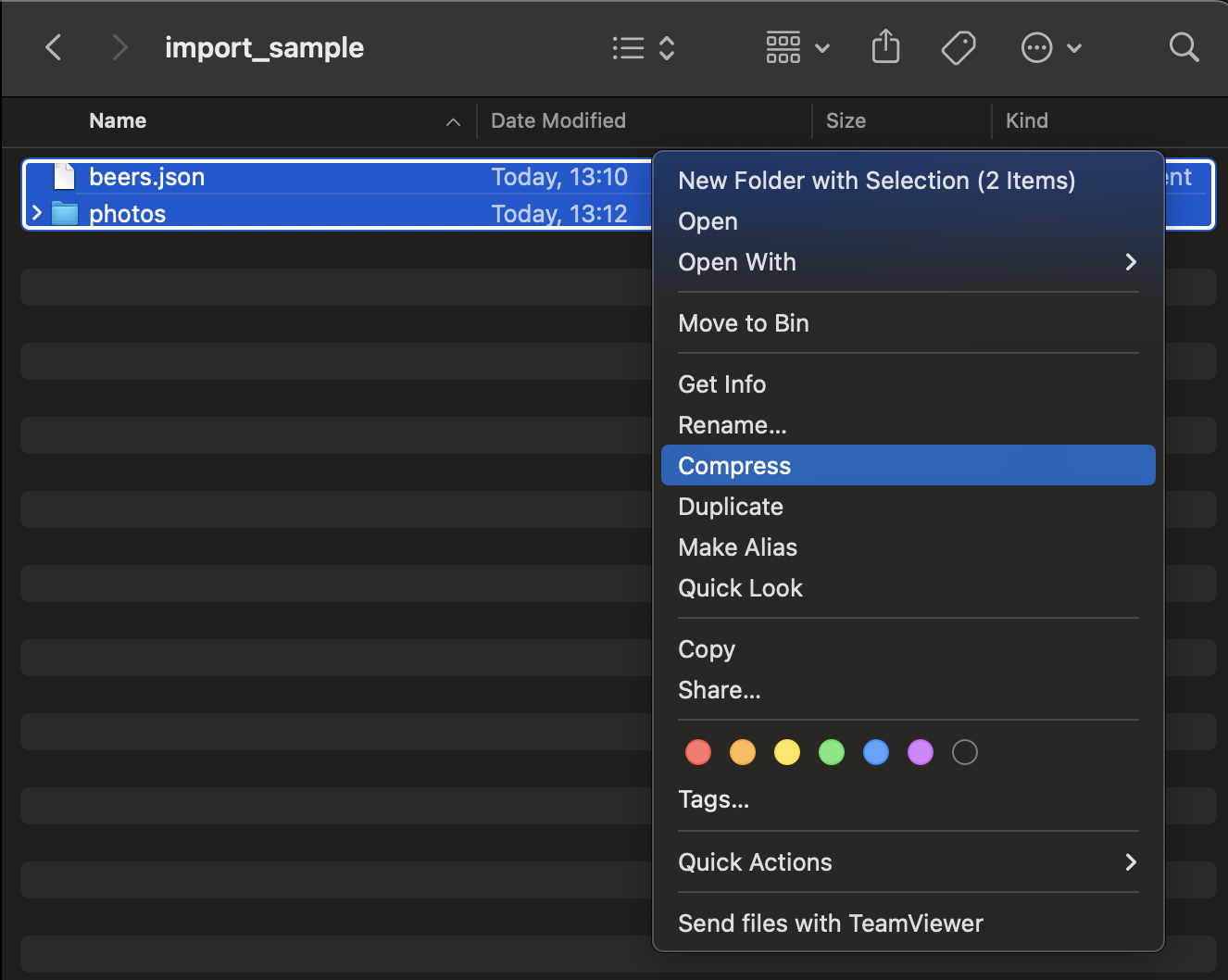
On macOS Finder, select the beers.json file and the photos directory and right-click. Now choose compress like this:
Import the resulting zip file into BeerDiary and hopefully things work! If not, send me a message and let me know.